The Master Guide: How to Properly Set and Scale Wallpapers on Every Device

Refresh Your Digital Environment: The Power of Personalization
You interact with your screens hundreds of times every single day, yet many users settle for default backgrounds that offer no personal resonance or aesthetic value. A well-chosen wallpaper does more than fill empty space; it sets the tone for your workflow, impacts your mood, and transforms a sterile piece of glass into a reflection of your personality. Whether you are staring at a desktop monitor for an eight-hour shift or checking your phone on the go, the visual environment you create is the foundation of your digital workspace.
Why Customizing Your Screen Matters
Modern display technology—from OLED panels with infinite blacks to ultra-high-resolution Retina screens—deserves content that highlights its technical capabilities. Beyond pure aesthetics, curated wallpapers assist in visual organization. A high-contrast or minimalist wallpaper can make your desktop icons easier to see, while a soft-focus or muted background reduces eye fatigue during long sessions. Think of your screen as a room in your house; just as you choose art for your walls, you should choose imagery for your digital life to create a sense of order, focus, or inspiration.
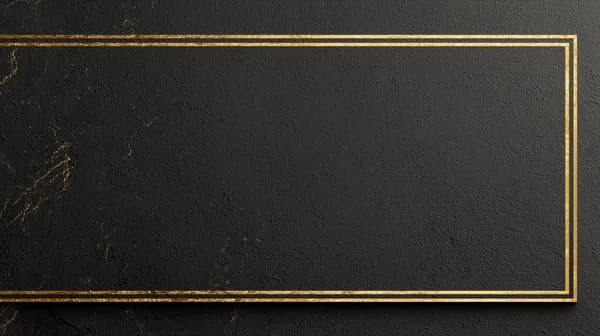
Luxurious Black Texture with Double Gold Frame Wallpaper
This landscape-oriented gold and black texture is perfect for widescreen desktop monitors, offering a clean, non-distracting background that allows your app icons to pop.
A Practical Guide to Setting Your Wallpaper
The secret to a perfect look isn't just picking a pretty image; it is understanding resolution and scaling. Use these steps to ensure your chosen art looks sharp and correctly positioned across any device.
Setting Wallpaper on iPhone (iOS)
- Open the Settings app and tap Wallpaper.
- Select Add New Wallpaper to view your gallery or choose a preset.
- Once you select your image, use two fingers to pinch and zoom to crop the composition exactly how you want it to appear on your Lock Screen and Home Screen.
- Tap Add and select Set as Wallpaper Pair to finalize.
Setting Wallpaper on Android
- Long-press on an empty area of your Home Screen.
- Tap Wallpaper & style or Wallpapers.
- Choose your image from your media folder.
- Most Android launchers allow you to toggle the Parallax Effect; keep this on if your wallpaper has a sense of depth, or turn it off for a static, battery-saving look.
Setting Wallpaper on Windows 10/11
- Right-click your desktop and select Personalize.
- Navigate to the Background tab.
- In the Choose a fit dropdown menu, always use Fill or Span for high-resolution images to avoid awkward gaps or blurry stretching.
Setting Wallpaper on macOS
- Click the Apple Menu and go to System Settings.
- Select Wallpaper in the sidebar.
- Click Add Folder or Add Photo to bring in your downloaded files, then click to apply.
Design principle: Always match your wallpaper orientation to your screen. Portrait images for phones and landscape images for desktops ensure the artist's original composition remains intact.
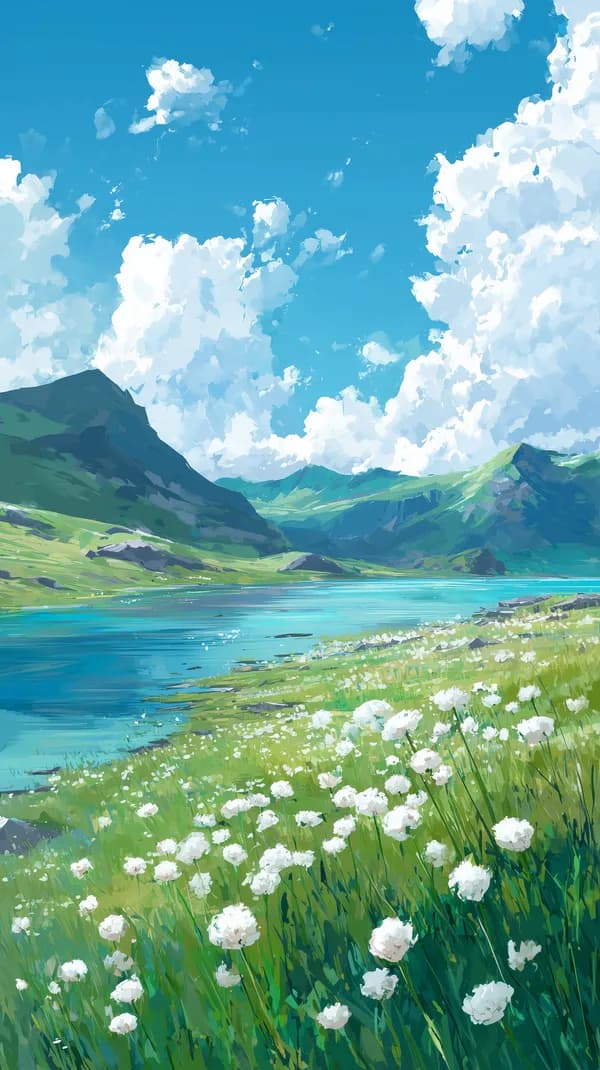
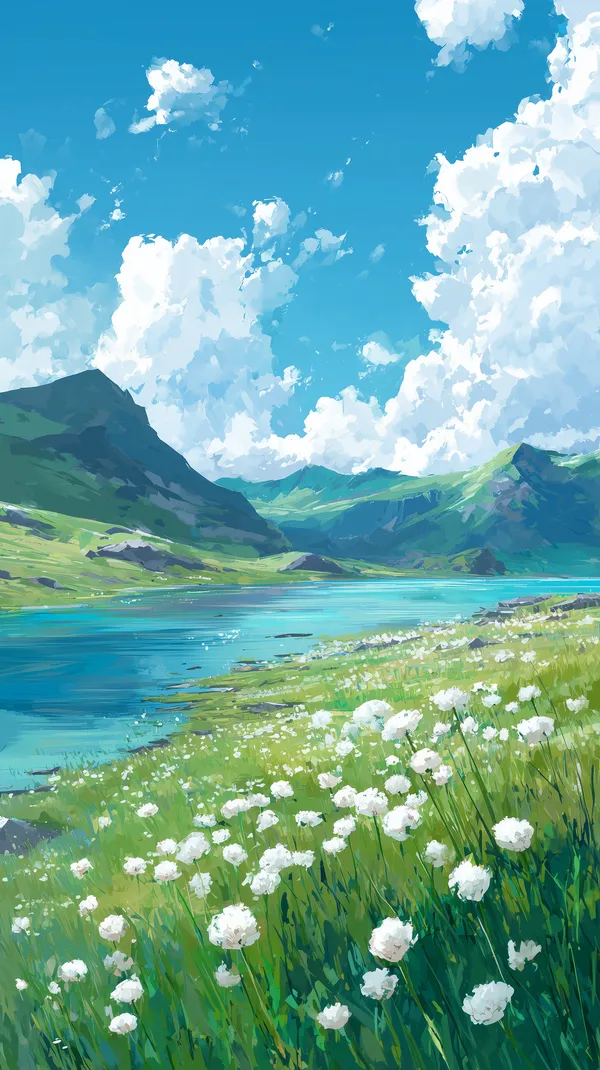
Vivid Alpine Lake Landscape Blue Sky Meadow Wallpaper
For smartphone users, this vibrant vertical landscape provides a sense of openness and nature, which is ideal for breaking up the monotony of app-heavy home screens.
Featured Picks: Curating Your Aesthetic
Selecting the right wallpaper is about matching the visual weight of the art to your usage habits. Here are curated choices that serve different roles.
For Productivity and Calm
If you use your desktop for deep work, avoid high-contrast, chaotic imagery that distracts the eye. The Cream Satin Fabric Wallpaper provides a soft, neutral depth that keeps your workspace feeling professional and calm without demanding attention.

Cream Satin Fabric Wallpaper with Soft Folded Texture
The soft, tactile texture of this satin image is perfect for a clean, minimalist desktop setup where you want a background that feels expensive and intentional.
For Fantasy Enthusiasts
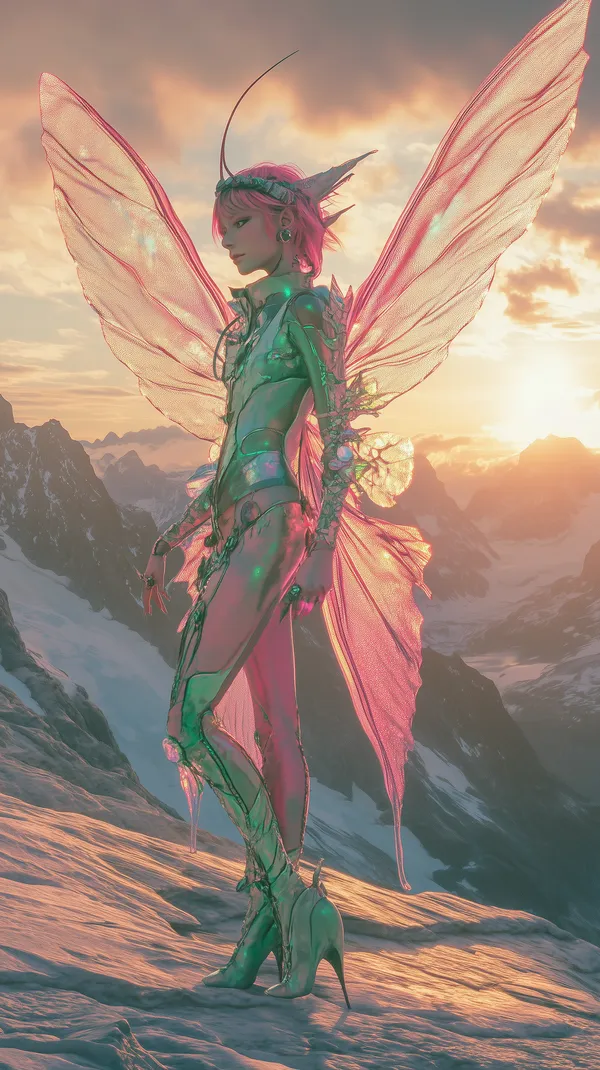
Fantasy art is a fantastic way to escape during short breaks. If you enjoy narrative-heavy imagery, consider a piece that tells a story, such as the Fantasy Fairy Warrior or the Eerie Skeletal Wraith, which add a touch of mystery to your mobile interface.
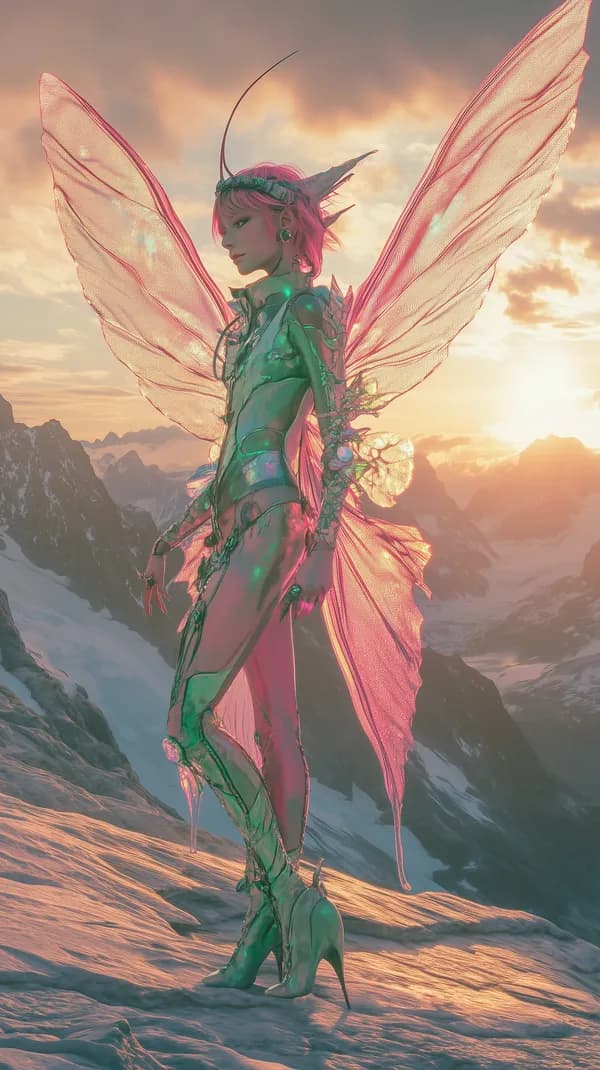
Fantasy Fairy Warrior with Iridescent Wings at Sunset Peak
This vertical piece uses dramatic lighting, making it an excellent choice for a Lock Screen where the warm sunset colors will make your notifications feel less intrusive.

Eerie Skeletal Wraith in Tattered Cloak Amid Embers
For those who prefer a darker, more cinematic mood, this portrait wallpaper brings a bold, artistic flair to any mobile device.
For Playful Personalization
Don't be afraid to add a bit of personality. A whimsical background or a vintage-inspired portrait can make your devices feel like an extension of your unique style, turning a generic device into a curated piece of tech.

Retro Pin-Up Portrait in Red Polka Dot Dress - Vintage Glam Wallpaper
This wide-format vintage portrait works wonderfully on tablets or secondary monitors where you want a pop of color and retro charm.
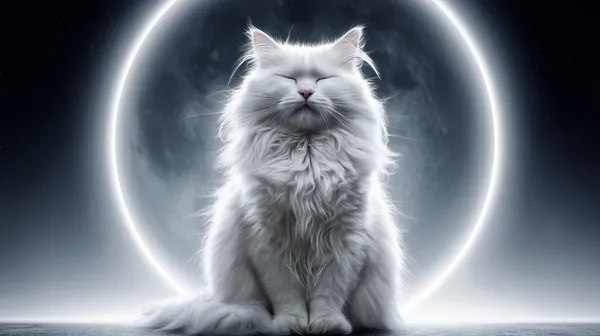
Celestial White Cat Beneath a Glowing Lunar Ring in Space
Perfect for widescreen desktop setups, this cosmic image offers a whimsical, serene atmosphere that pairs beautifully with clean, dark-mode interfaces.
FAQ: Your Wallpaper Questions Answered
Does high-resolution wallpaper drain my battery?
Generally, no. Modern mobile devices are optimized to handle high-resolution image rendering efficiently. However, using a live or animated wallpaper that constantly processes movement can indeed reduce battery life, so stick to high-quality static images for maximum efficiency.
What resolution is best for 4K monitors?
For a standard 4K monitor, you should aim for a minimum resolution of 3840 x 2160 pixels. If you are using a dual-monitor setup, look for wallpapers that are at least 7680 x 2160 pixels to ensure that the image remains crisp across both screens without pixelation.
Can I use these wallpapers for commercial projects?
Wallpapers from Aiixy are intended for personal, non-commercial use on your private devices. If you are looking for assets for commercial graphic design, advertising, or web development, please contact us for licensing information regarding usage beyond personal desktop or mobile backgrounds.
Why does my wallpaper look blurry after I set it?
Blurriness usually occurs when the image resolution is lower than your monitor’s native resolution. If you are stretching a small image to fit a large screen, the software is interpolating pixels to fill the gap, resulting in softness. Always ensure the dimensions of the file meet or exceed your screen's pixel count.
Conclusion
Your screen is the portal through which you experience the digital world, so curate it with intention. Whether you prefer the serenity of a mountain sunset or the grit of fantasy art, a fresh background is the easiest way to give your tech a personality boost. Explore the full library at Aiixy today and find the perfect image to elevate your daily routine.